Marvel Rivals Hide Chat: How to Turn Off Voice + Text Chat
In this guide, “Marvel Rivals Hide Chat: How to Turn Off Voice + Text Chat,” we’ll show you exactly how to disable both voice and text chat in Marvel Rivals so you can avoid distractions, reduce toxicity, and focus fully on your gameplay with a smoother, more enjoyable experience.
Before you start, you can check out our other Marvel Rivals guides. We create guides filled with simple tips, easy tutorials, and helpful advice to make your gameplay better and your settings easier to use: What is Final Hits in Marvel Rivals and How Old is Peni Parker in Marvel Rivals?
Step 1: Go to Marvel Rivals Settings

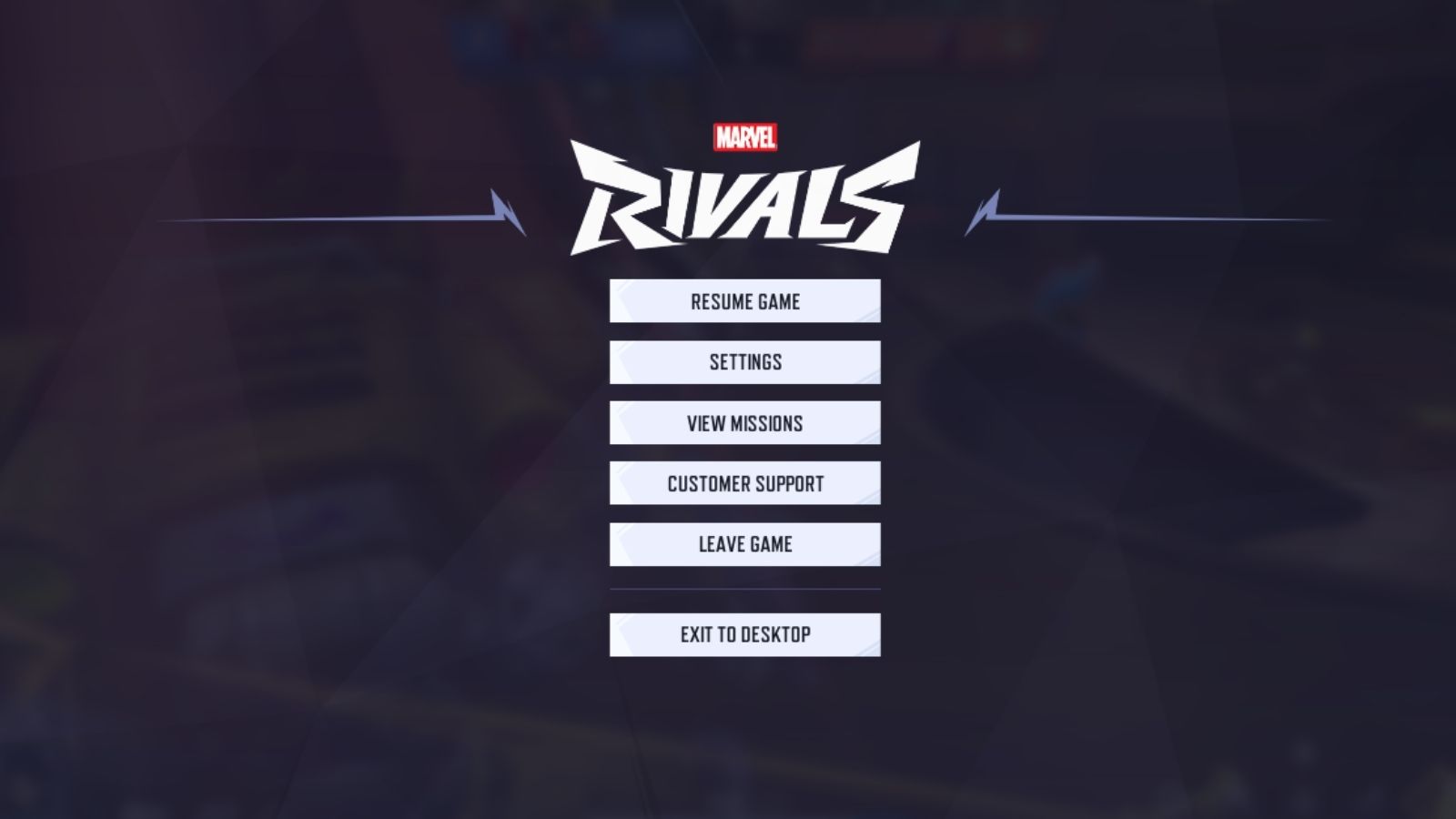
To hide chat in Marvel Rivals, the first step is to open the settings menu. There are a few different ways you can access the settings, depending on whether you’re in the main menu or already in a match, so you can choose the method that works best for you.
Option 1: Accessing the Settings Menu During Gameplay
If you happen to be at the character selection menu or waiting for a match to start (and hopefully not trying to do this in the middle of a game), you can easily access the settings menu from there. This is actually one of the best times to adjust your settings, since you won’t be distracted by gameplay and can take your time finding the options you need.
Since there are multiple consoles available, we’ll go ahead and focus on the top three most popular ones to keep things simple and easy to follow. This way, you can quickly find the instructions that match your platform without having to sort through unnecessary information.
- PC – You can access the settings by pressing ‘Esc’ and the menu to the settings should appear.
- Xbox – Press the menu button (the three horizontal lines on the controller) to bring up the main menu, then choose the gear icon to open the settings.
- PlayStation 5 – To open the settings in Marvel Rivals on PS5, press the options button on your controller, then go to the Settings menu from there.
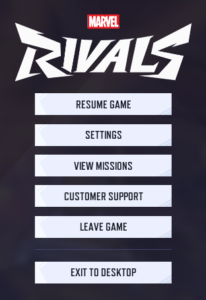
Once you do this, a menu should appear on your screen, giving you access to several options and settings. From here, you can navigate through the menu.

Option 2: Accessing the Settings Menu on the Home Screen

To access the settings menu from your home screen, all you need to do is click on the cogwheel icon located in the top-right corner of your screen. This will open a menu with several options available. Once the menu appears, look for and select “Settings” to proceed, and then you can move on to the next step.

If you’re using a keyboard, you’ll need to open the keyboard settings to find the right options. Once you’re in the settings menu, look for and select the keyboard or controller settings section.
Step 3: Select Communications and Scroll Down

From there, navigate to the “Communications” tab, where you’ll find the options related to chat and voice features.
When you scroll all the way down to the bottom of the menu, this is what you’ll see on your screen. Take a moment to look over the options shown here, as this is where you’ll find the settings you need to adjust.
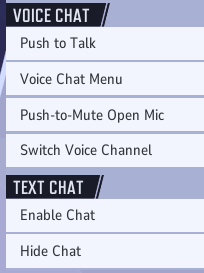
Turning Off Voice Chat on Marvel Rivals

On PC, the default settings usually allow you to open the voice chat menu by pressing P on your keyboard during gameplay. If you’re playing on Xbox or PlayStation, you’ll need to use a different button instead. When you do this, a voice chat panel will appear on your screen showing your teammates listed under “Your Team.” Next to each player’s name, you’ll see a small microphone icon.
To mute a specific player, simply click on the microphone icon next to their username. Once selected, their voice chat will be muted, allowing you to focus on the game without any unwanted noise or distractions.
Turning Off Text Chat in Marvel Rivals

To turn off text chat in Marvel Rivals, you’ll first see the key bindings assigned to your keyboard. For us, it’s CTRL + Shift + C. Again – if you’re playing on Xbox or PlayStation, you’ll need to use a different binding instead.
Once you press the correct keys to enable the “Hide Chat” option, the chat will be completely turned off during gameplay. This means you won’t be able to send messages or see any incoming chat from other players. While this can help reduce distractions and avoid unwanted interactions, keep in mind that you also won’t see important team communication, so use this setting based on your preference.
Conclusion for “Marvel Rivals Hide Chat: How to Turn Off Voice + Text Chat”
In conclusion, learning how to use Marvel Rivals Hide Chat is an easy way to make your gaming experience better. If you want fewer distractions, less negative chat, or just want to focus more on playing, turning off voice and text chat can really help. By following the steps in this guide, you can quickly change your settings and play the way that feels best for you.
Just remember, hiding chat makes the game quieter, but you also won’t see or hear your teammates. So pick the option that works best for how you like to play.